01
AI reads the company
Every agent
AI crawls the site and writes the offer, the audience, the voice, and the brand. Website chat, card flows, LinkedIn, and mail start from that.
Click Dashboard in the sidebar.
Sales Launch is the card on the Dashboard. It is the path from a new company to the first agent.
The scan uses your homepage and writes a commercial profile. The card stays on screen while that runs.
The heading changes when the website agent is generated. Nothing is public until you review it and go live.
Open the website card flow from the Overview.
The website agent opens in Studio. Check the copy and the paths before anything is public.
Mark reviewed tells Sales Launch you have looked at the flow. Style is for the website agent.
Go live publishes the website agent and gives you a hosted link in the same session.
Sales Launch is the Console onboarding path that takes you from a blank company to generated, reviewed, credited agents: a live website agent plus an optional LinkedIn agent with a generated flow and first prospect list.
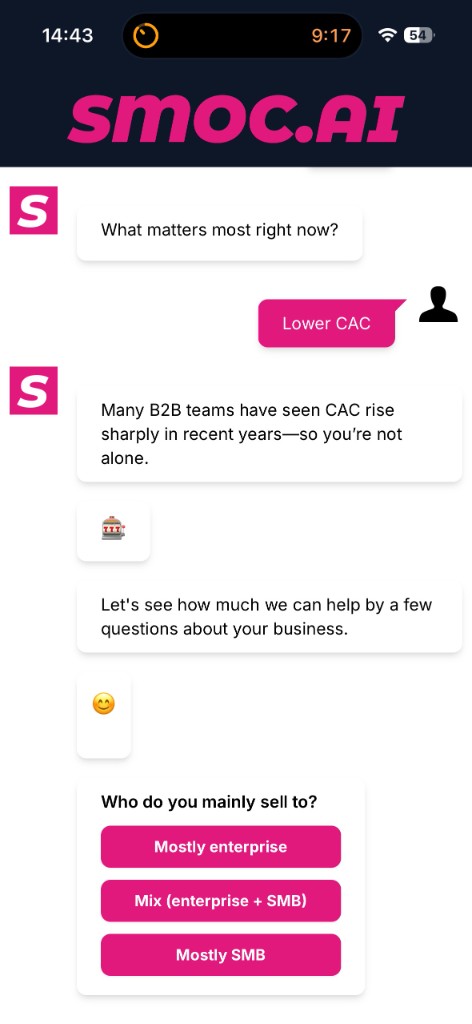
In Console, open the Sales Launch card. Headings move from building your first website agent through LinkedIn lead agent setup as work completes.
Sales Launch scans your homepage (a handful of pages) and generates a website agent you can review. Parallel LinkedIn rows may show: website agent ready, LinkedIn account connected, generate outreach flow, generate targeting portfolio.
On a large site (news, fixtures, shop-elsewhere), that first scan often yields a thin Commercial Profile. After the first agent exists, open Company → Crawl sites, add about / product / commercial URLs, recrawl, then continue review. See Crawling company sites for a richer Commercial Profile.
Open Website Studio (and later LinkedIn Studio). Check copy, paths, Style (web only), and Settings/Targeting. Use Mark reviewed when the agent looks right.
Confirm you have Credits under Settings → Billing or the Sales Launch Credits ready / Add credits actions. Free allotments are small; LinkedIn connect and monthly LinkedIn account costs also draw Credits.
Choose Connect LinkedIn, complete sender setup, then generate the LinkedIn agent and targeting if prompted. Respect daily invite/message caps in LinkedIn settings. On the Starter trial you can send the same day after Connect.
Go live publishes the website agent after review (hosted link / embed the same session). LinkedIn message flows must be published in Studio before outreach runs.
Two settings. They are not the same.
The screen language is the language of the website, Console, and Studio, including sign-in. On smoc.ai, the language menu stores the choice. The next visit opens in that language. The first visit, with nothing stored, follows the country, then the browser language, then English. English, Norwegian, Swedish, Danish, Finnish, German, French, and Spanish. SMOC, Console, and Studio stay as written.
The market language is what the agent says. Sales Launch asks for it. The billing country suggests one. English stays on the company, and you add the language you sell in. Studio generates the open flow in the language selected in the header. The Translation panel fills the other languages. A Norwegian Console can run a German agent.
See One company, every language.
Where AI runs
Website chat, card flows, LinkedIn, and mail share one system. AI does each job below. The line under the title says where that job runs.
Every agent
AI crawls the site and writes the offer, the audience, the voice, and the brand. Website chat, card flows, LinkedIn, and mail start from that.
Dashboard · Lead Strategy
Set your lead goal. AI simulates thousands of channel mixes, ranks them by efficiency, and shows the most cost-effective plan. Your data and constraints shape the math.
Every agent · theme on web · lists on LinkedIn and mail
AI writes the flow. Theme runs on website chat and cards. Translation runs on every agent. AI finds the prospect list on LinkedIn. Mail uses the prospect lists you already have.
Path on every flow · web, LinkedIn, and mail
Reinforcement learning on the flow path runs on every agent. Recommendations run on web. Right timing and reply reading run on LinkedIn and mail.
Every agent
AI proposes a variant, uses your review on the next draft, and starts from an example that already works. You apply the change.
Continue learning with these related guides
Get product updates and perspective on proactive AI agents, multichannel orchestration, and conversion—without the noise.
 Weekly signal on proactive AI sales
Enter your email below to get started with SMOC.AI