Connect Meta, Google, and LinkedIn Ads
Connect Meta, Google, and LinkedIn Ads
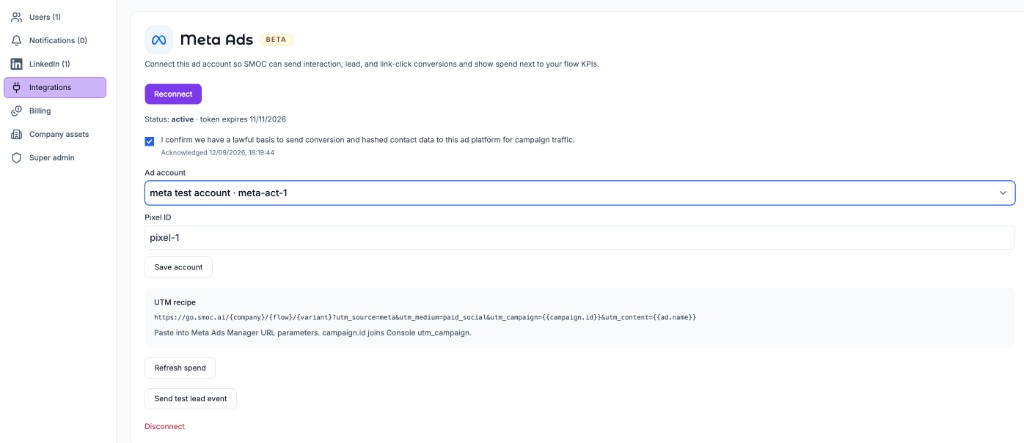
Connect an ad account in Console → Settings → Integrations so SMOC can send server-side conversions from published web flows and overlay paid spend on Agents dashboards.
This integration is Beta. Setup is limited to invoiced companies. Super-admins can open the pages to dogfood. SMOC does not create or publish ads — you still build campaigns in Ads Manager, Google Ads, or Campaign Manager.
Google Ads and LinkedIn Ads use the same page: connect, accept the DPA, pick the ad account, then copy the URL parameters. Where you paste them is different on each platform.
What you get
After you connect an account, accept the DPA, and select an ad account:
- Conversions — interaction, lead, and Smart Click (coupon redeem) events upload automatically from a published web flow. No Custom HTML step callbacks are required for those events.
- Spend — campaign-day spend, impressions, and clicks sync hourly. Agents dashboards show a paid-spend strip under the KPI row.
- SMOC share — the share of that spend on campaigns whose current platform campaign name or id matches a
utm_campaignfrom SMOC visits (exact match, or the UTM name is a prefix of the Meta name). Put the stable campaign id inutm_idso a rename does not break the join.
Head Tags pixels are still useful for PageView / tag load on the landing page. Server upload replaces Google gtag and LinkedIn lintrk step callbacks once that platform is connected. For Meta, only dual-tag in the browser if the fbq event uses the same event_name and eventID ({type}:{conversationId}).
Workspaces that are not invoiced, or that have not connected yet, keep the Head Tags + Custom HTML path.
1. Connect the account
- In Console go to Settings → Integrations.
- Open Meta Ads, Google Ads, or LinkedIn Ads.
- Connect with the platform OAuth screen.
- Accept the data-processing acknowledgement (DPA).
- Select the ad account SMOC should use. For Meta, also set the pixel used for Conversions API.
- Copy the URL parameters from that page (parameters only, no leading
?). On Meta, paste them into the ad → Tracking → URL parameters field (or Build a URL parameter). Meta has no account-level UTM setting; use the same string on every ad (or bulk-edit). Do not put those tags in the Website URL on each ad set. On Google, paste them as the Final URL suffix under Settings → Additional settings → Campaign URL options (campaign or account), or on the ad. Leave the Final URL as the Flow URL. On LinkedIn, paste them into URL tracking parameters on the account or campaign, not on the destination URL.
Accepting the DPA also backfills the last 30 days of stored leads that still look paid, and starts a 90-day spend pull. After that, spend refreshes hourly for the last two days. Use Refresh spend on the same page to pull the last 90 days again.
Interaction, lead, and Smart Click events are on by default. You can turn an event type off on the account if you do not want it uploaded.
2. Point ads at the Flow URL with the recipe
Use the published Flow URL as the landing page (https://go.smoc.ai/<company>/<flow>/<variant> or your custom domain).
Use the campaign name in utm_campaign for Console filters and reports when the platform has a name token. Put the id that spend sync stores in utm_id so a rename does not break the join. Meta Insights shows the current campaign name; the UTM name is whatever the campaign was called when the person clicked.
On Meta, open an ad in Ads Manager, scroll to Tracking, and paste the string into URL parameters (no leading ?). Use the same string on every ad — {{campaign.name}}, {{campaign.id}}, and {{ad.name}} fill at click time. Bulk-edit to apply it across ads. Do not put those tags in the Website URL on each ad set. Meta’s help article: Add URL parameters to your Meta ads.
On Google, open the campaign or account, go to Settings → Additional settings → Campaign URL options, and paste the string as the Final URL suffix (or set it on the ad). Leave the Final URL as the Flow URL. Do not put ValueTrack tokens in the Final URL. Google has no campaign-name token, so {campaignid} stays in both utm_campaign and utm_id.
On LinkedIn, open URL tracking parameters on the account or campaign (not the destination URL) and paste the string there. Values are uppercase in double braces. In the current Campaign Manager, {{AD_SET_ID}} is the ad set — the entity LinkedIn’s API still calls a campaign — so that is what spend joins. {{CAMPAIGN_ID}} is the parent campaign; do not put it in utm_id. Leave the destination URL as the Flow URL. LinkedIn’s help article: URL tracking parameters in Campaign Manager.
| Platform | Where to paste | Parameters |
|---|---|---|
| Meta | Ad → Tracking → URL parameters | utm_source=meta_{{site_source_name}}&utm_medium=paid_social&utm_campaign={{campaign.name}}&utm_id={{campaign.id}}&utm_content={{ad.name}} |
| Final URL suffix (campaign, account, or ad) | utm_source=google&utm_medium=cpc&utm_campaign={campaignid}&utm_id={campaignid}&utm_content={creative} |
|
| Account or campaign URL tracking parameters | utm_source=linkedin&utm_medium=paid_social&utm_campaign={{AD_SET_NAME}}&utm_id={{AD_SET_ID}}&utm_content={{AD_NAME}} |
utm_medium must stay a paid value (cpc, ppc, paid, paid_social, pmax, display, or paid-social). That, or a Google/Microsoft click id on the URL, is how SMOC decides the visit is paid.
3. Click IDs — no tracking cookies required
SMOC reads the click IDs the ad platforms already put on the landing URL (gclid, gbraid, wbraid, fbclid, li_fat_id, and similar), stores them on the conversation, and sends them server-side. It does not read _fbc, _fbp, or _gcl_* cookies.
For Meta, fbclid is sent as fbc. Google needs gclid, gbraid, or wbraid (and drops events older than 90 days). LinkedIn needs li_fat_id or a hashed email.
If the click never lands with those query params (or a paid utm_medium), the conversion is not enqueued. Organic traffic is skipped.
4. What fires automatically
On a published web flow (not a Studio draft, not a LinkedIn message flow):
| SMOC event | When | Meta | ||
|---|---|---|---|---|
| Interaction | First recorded outgoing interaction | ViewContent |
SMOC_Interaction |
SMOC_Interaction |
| Lead | Lead form captured | Lead |
SMOC_Lead |
SMOC_Lead |
| Smart Click | Coupon marked redeemed | Contact |
SMOC_Click |
SMOC_Click |
Each event is sent at most once per conversation per platform (lead:conversationId, and so on).
Consent: hashed email, phone, IP, and user-agent are included only when marketing consent is granted, or the visitor is outside the EEA/UK/Switzerland and consent was left unspecified. Denied or restricted + unspecified → no enhanced matching. Meta also applies Limited Data Use in those restricted cases.
5. Paid spend on Agents
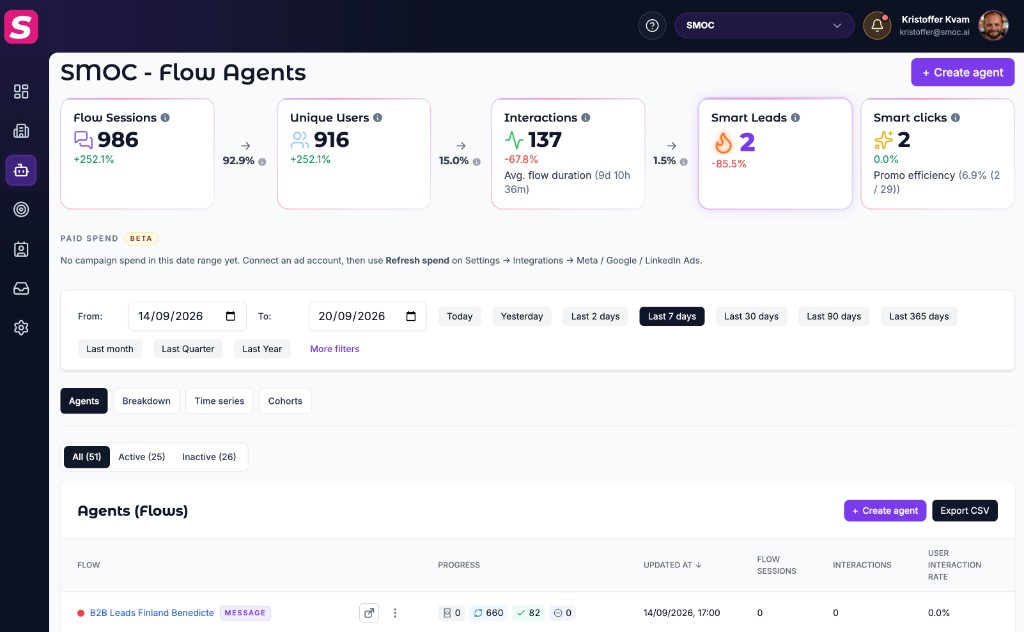
On Console Agents (and the company dashboard when a company is selected), a Paid spend row sits under the KPI cards. Each connected platform with spend in the date range gets its own card.
- The big number is all campaign spend in the selected dates — not only SMOC campaigns.
- SMOC campaigns is the share whose campaign id or name matches a
utm_campaignfrom SMOC visits (plus the Campaign filter if one is set). Matching is case-insensitive, and a UTM name also matches a Meta campaign title that adds a suffix (for exampleRetrade Smoc SelgerematchesRetrade Smoc Selgere - View Content). - Show campaigns lists the campaigns and a SMOC yes/— column.
Hourly sync covers today and the previous two days. If a new campaign is missing, use Refresh spend on the integration page (last 90 days). Agents defaults to the last seven days, so older spend only appears if you widen the date range.
Check that it works
- Open the published Flow URL with the recipe UTMs and a real or test click id (
fbclid,gclid, orli_fat_id). - Complete an interaction and a lead on the published flow.
- In Console, open the integration page and confirm recent events are accepted (not failed / expired token).
- In the ads UI, wait for the conversion action or CAPI event (can take a few hours).
- After Insights has data, Refresh spend and check Paid spend on Agents.
If the OAuth token expires, admins get a Reconnect notice in the Console notification center (the bell). Open it to return to Settings and reconnect. Google and LinkedIn access tokens refresh automatically; Meta (and a failed refresh) needs a new Connect. New conversions and spend sync pause until the connection is active again.
Related
Related Guides
Continue learning with these related guides
Stay close to the shift in AI sales
Get product updates and perspective on proactive AI agents, multichannel orchestration, and conversion—without the noise.
 Weekly signal on proactive AI sales