How do I understand the Studio layout, modes, and core navigation?
Category: Configurator
SMOC Studio is your workspace for building, editing, and analyzing flows.
This guide helps you quickly understand where everything is and what each area does.
What are the main areas in Studio?
When you open a flow, Studio is typically split into these core areas:
- Top bar: flow actions like Open flow, Publish, Versions, and utility actions.
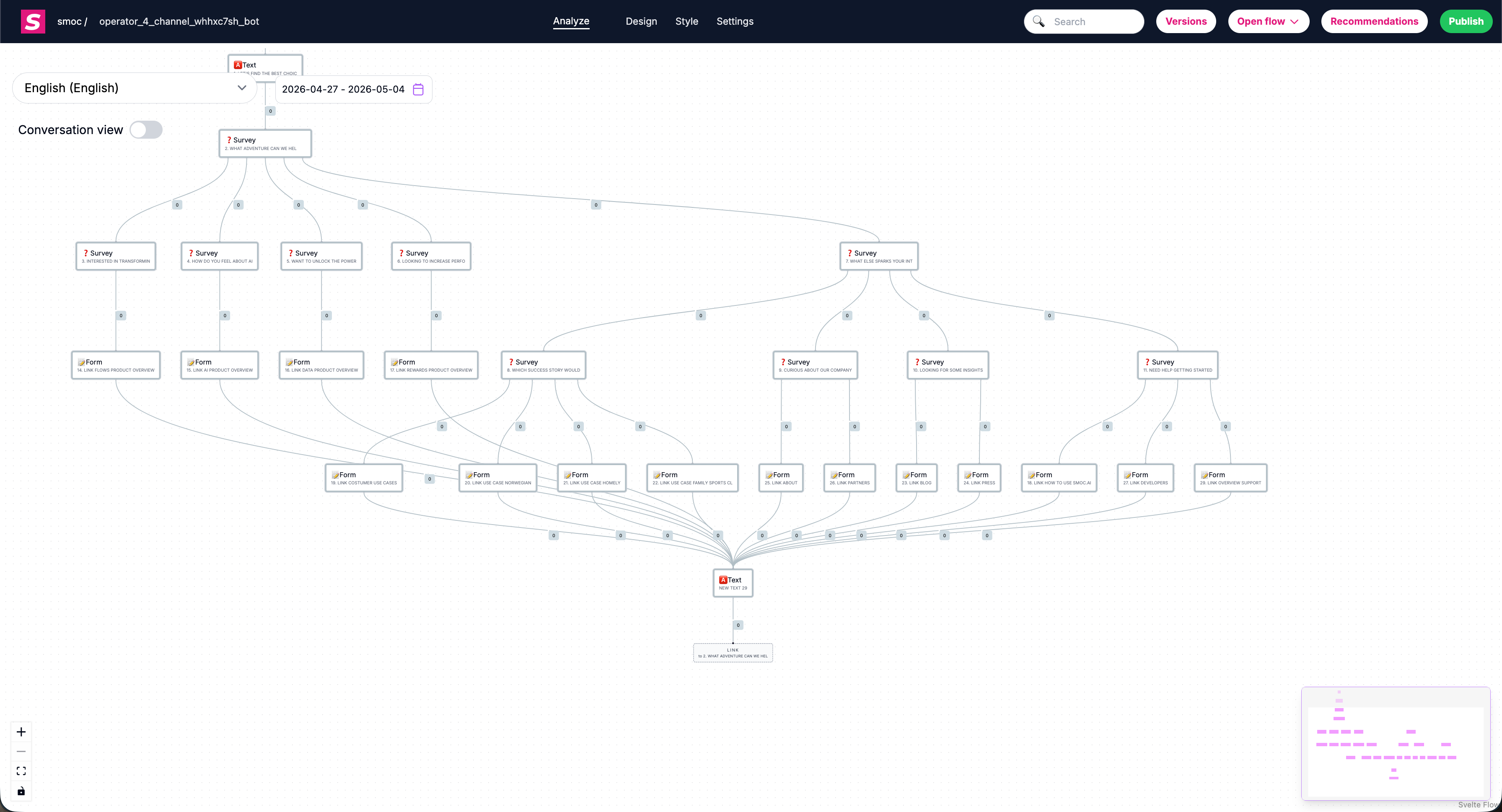
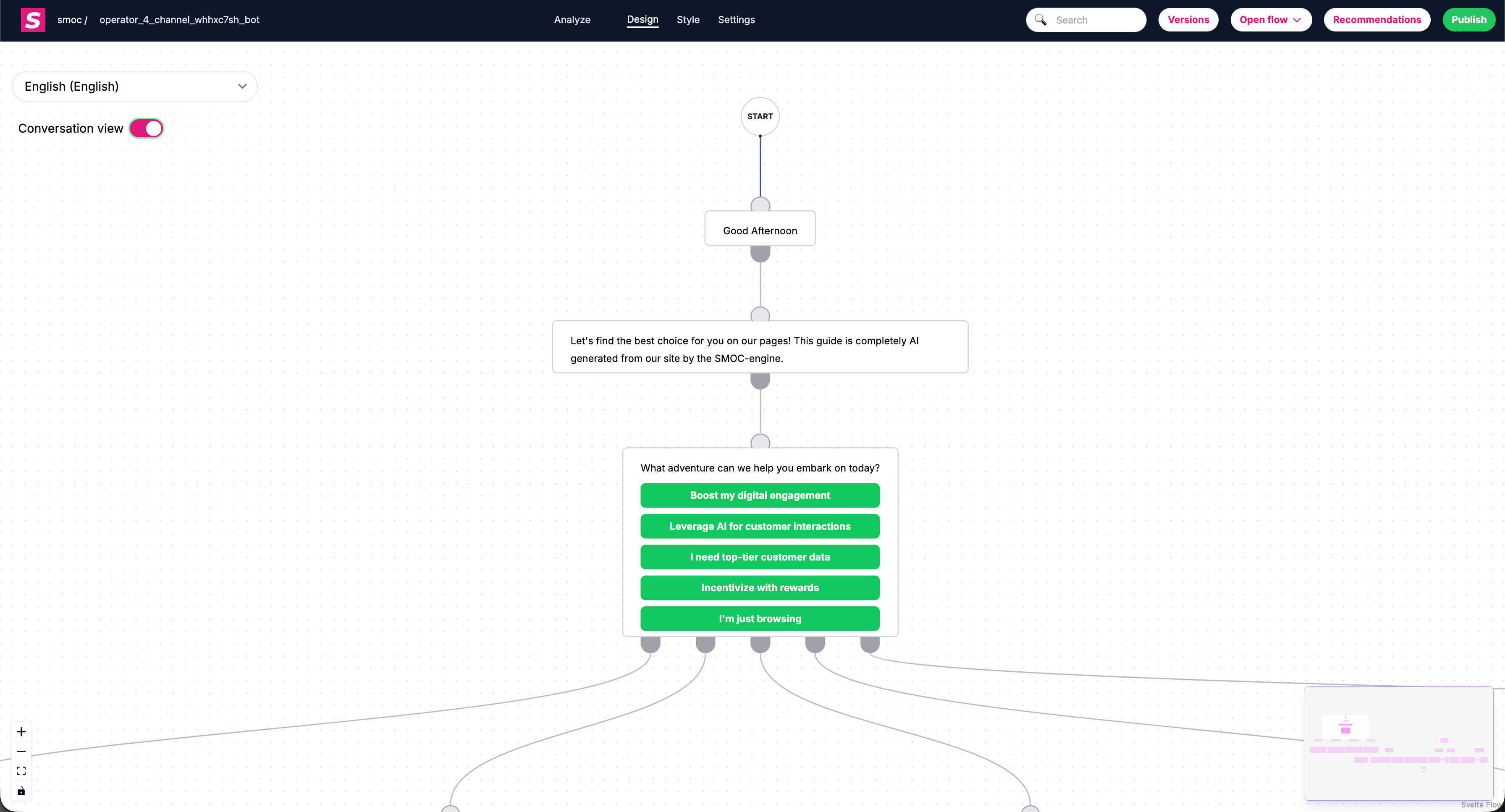
- Canvas: Conversation view, Flow view, or Table view. Conversation view is the default. Flow view is the graph. Table view edits the same steps in columns.
- Node editor panel: opens when you select/edit a node, where you configure content and elements.
- Settings / Styling areas: Settings, then Style, then Design. Design is the default and is where you edit the flow. Message flows have Settings and Design, and no Style section.
- Mode controls: the top sections are Flow and Targeting. Analysis view is a toggle on Design, and it is hidden in Table view.
What are the core Studio modes?
Studio is used in two primary modes:
- Design mode
Use this when building flows: adding nodes, connecting paths, editing content, and configuring behavior.
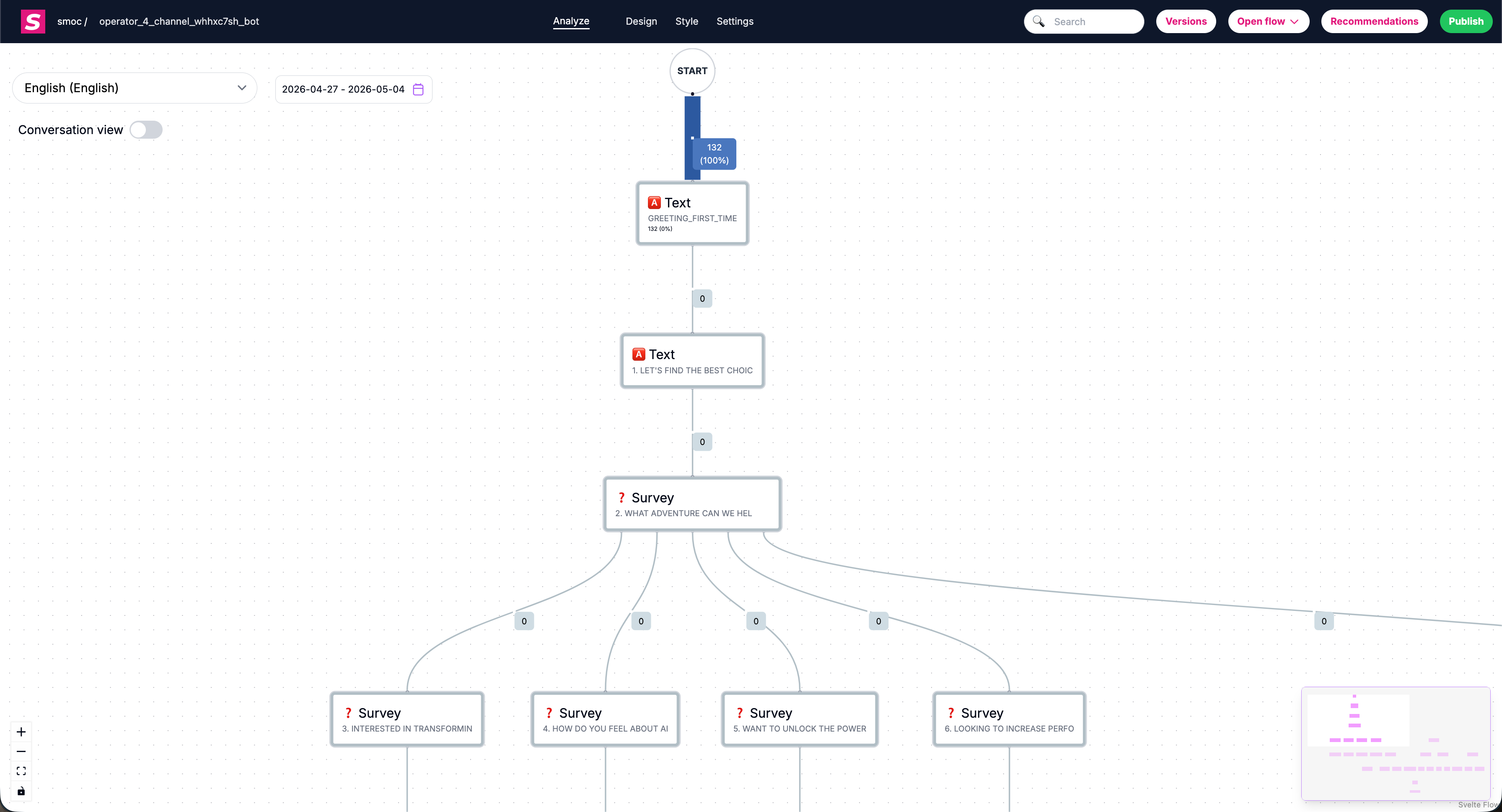
- Analyze mode
Use this when reviewing performance: node visits, path behavior, completion signals, and optimization opportunities.
How do I move around the flow canvas?
To navigate quickly in larger flows:
- Click and drag empty canvas space to pan.
- Use mouse wheel/trackpad to zoom in/out.
- Click a node to focus/select it.
- Use search to jump to matching nodes fast.
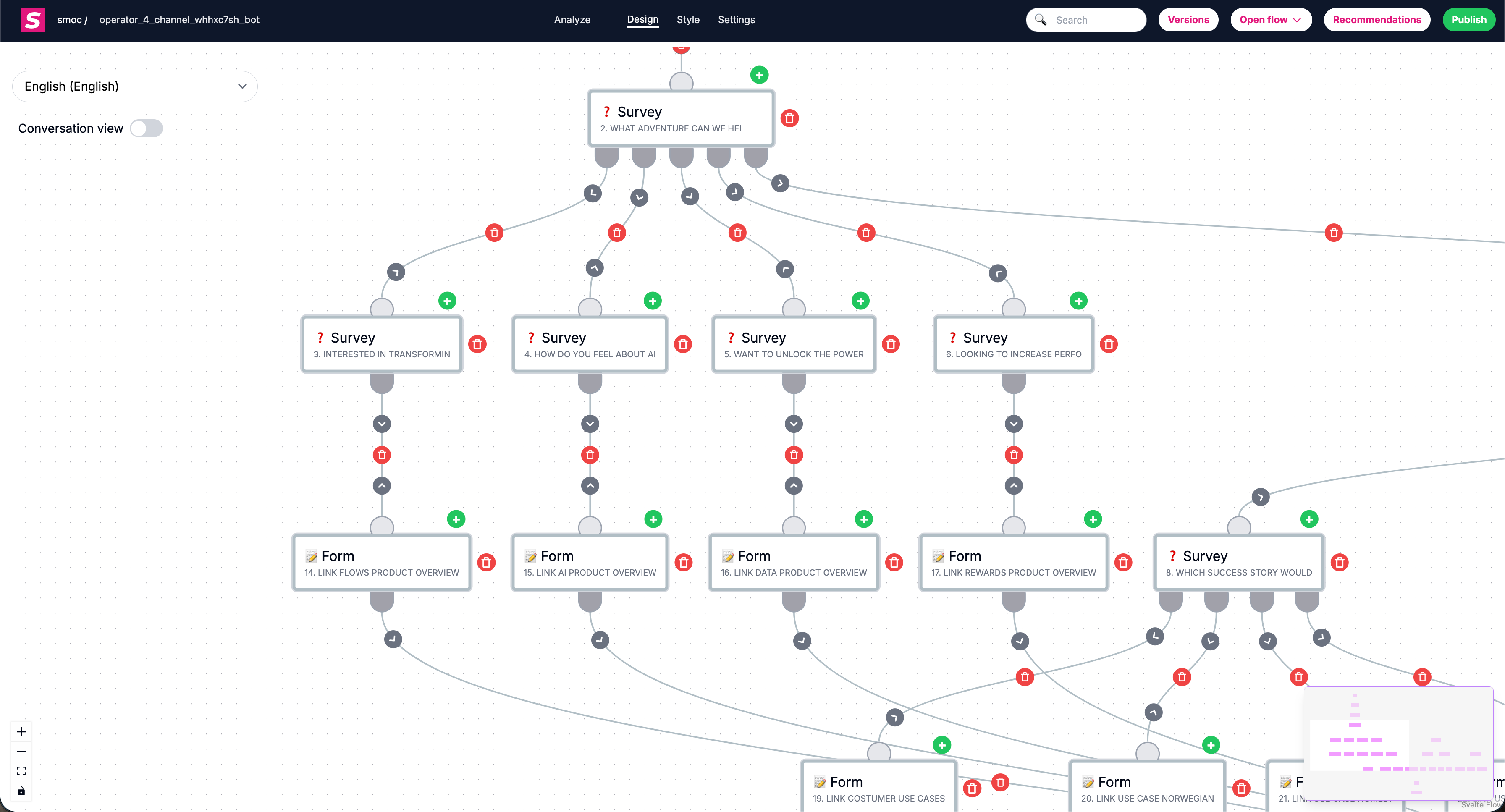
- Use the navigation arrows on edges to jump to previous/next node.
- Enable Always show hover elements in Editor settings to keep navigation arrows visible at all times.
What are nodes, handles, and edges?
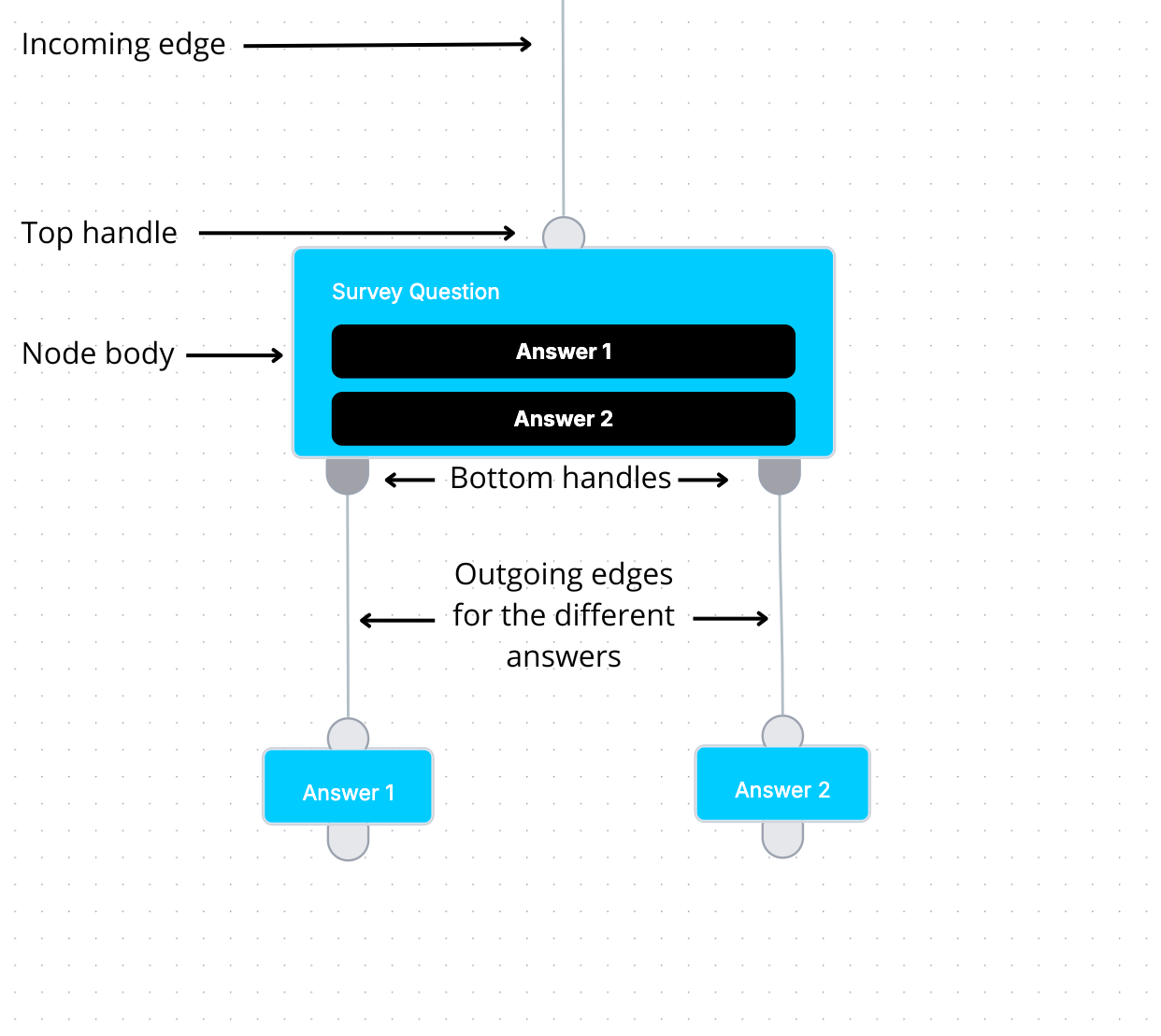
- Node: a flow step (for example Text, Survey Question, Form, Promo, etc.).
- Handle: a connection point on a node (used for outgoing/incoming paths).
- Edge: the line/path connecting one node to another.
In branching nodes, multiple handles represent different outcomes (for example one per survey answer).
Where do I edit flow content vs flow settings?
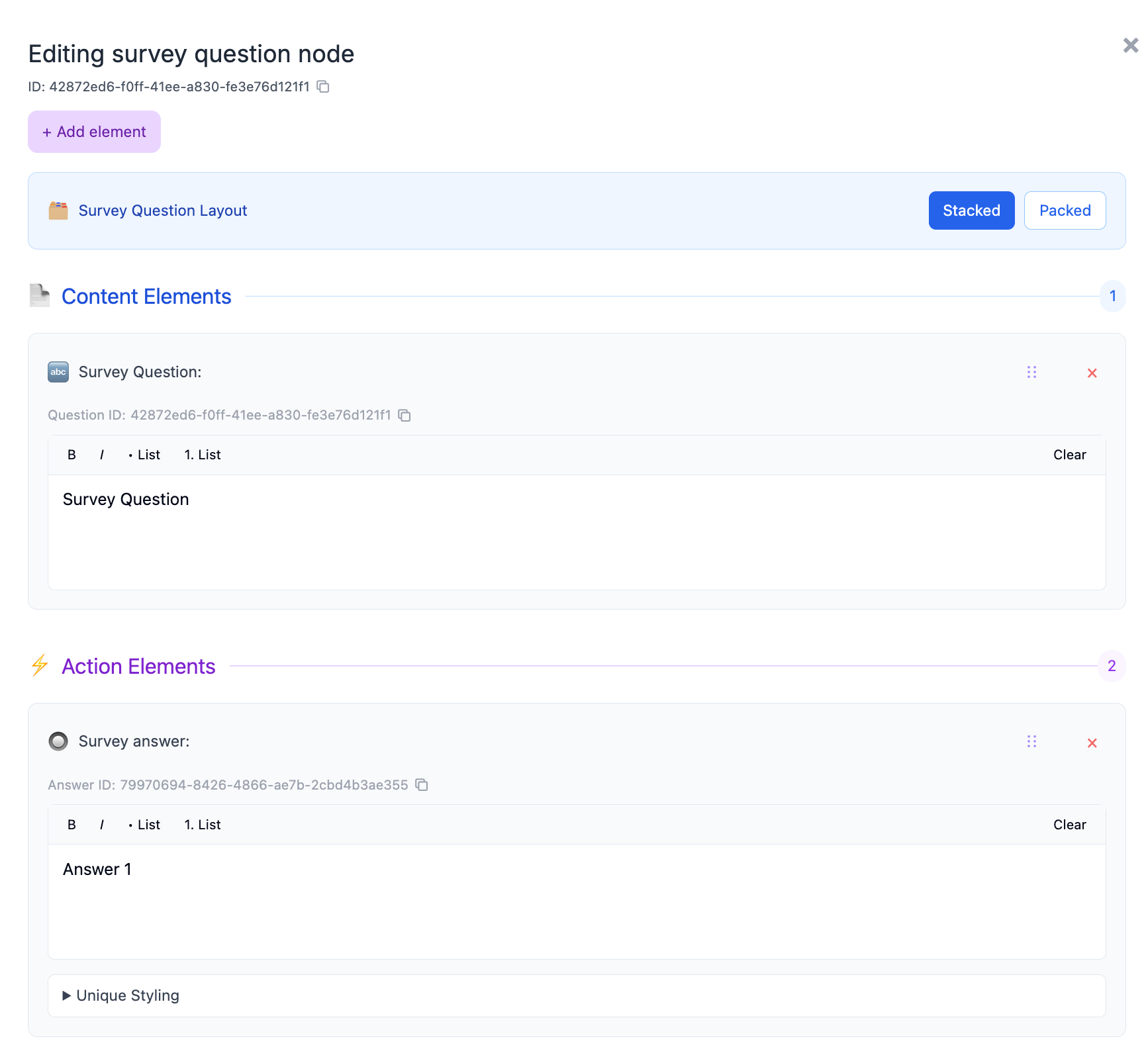
- Edit node content inside the node editor (text, buttons, form fields, links, etc.).
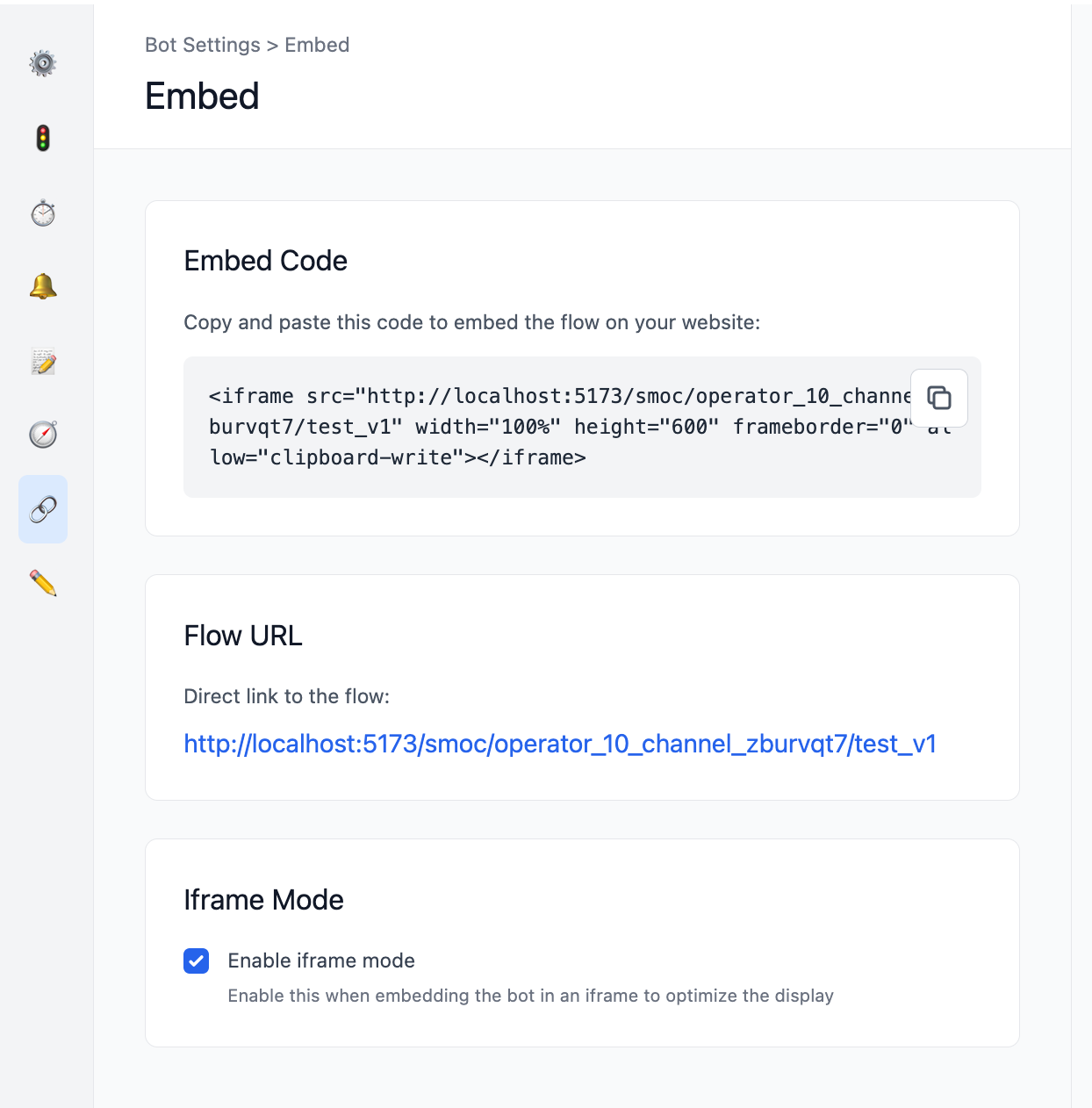
- Edit flow-level settings in Settings (for example localization, conversation speed, notifications, head tags, embed, keys).
This separation helps keep message content and global flow configuration organized.
Quick tips
- Keep node names/content clear so searching is easier later.
- In large flows, zoom out first to understand structure, then zoom into one branch at a time.
- Use Analyze mode regularly to validate real behavior, not just intended behavior.